Provider – Scheduling an Unpaid Break
Summary

 
  • Unpaid breaks have been added as an option for any activity with a duration that exceeds 1 hour. 
  • Adding an unpaid break to an activity will subtract the duration of the unpaid break from the total cost of the activity.
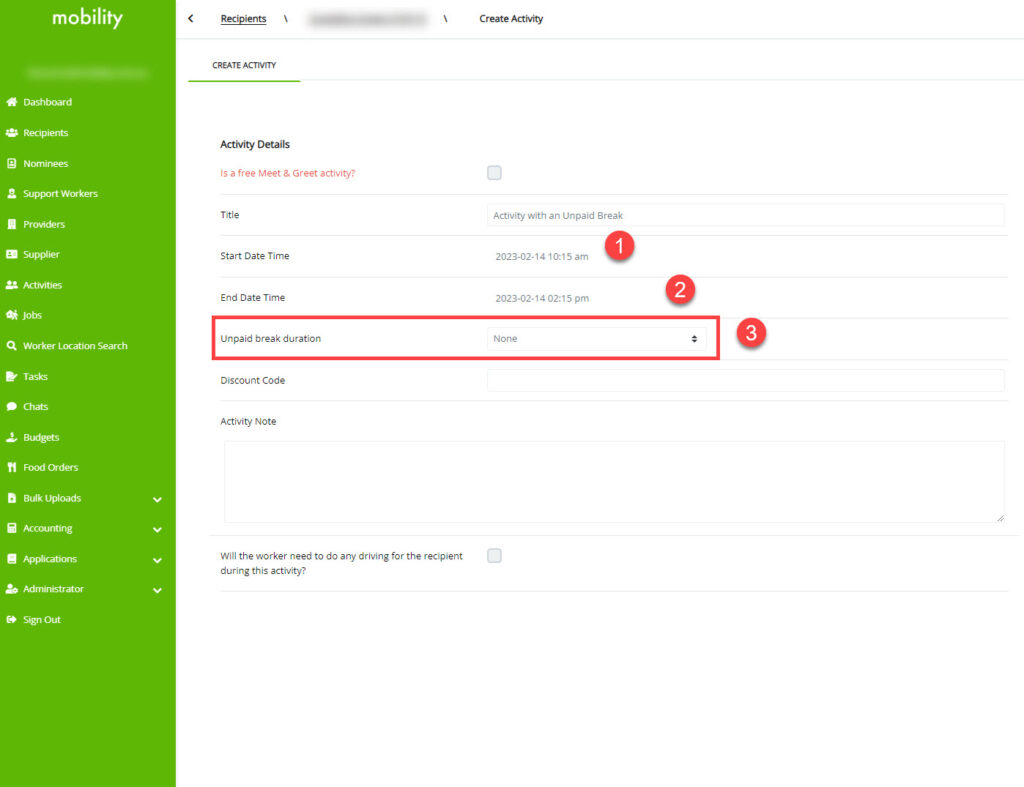
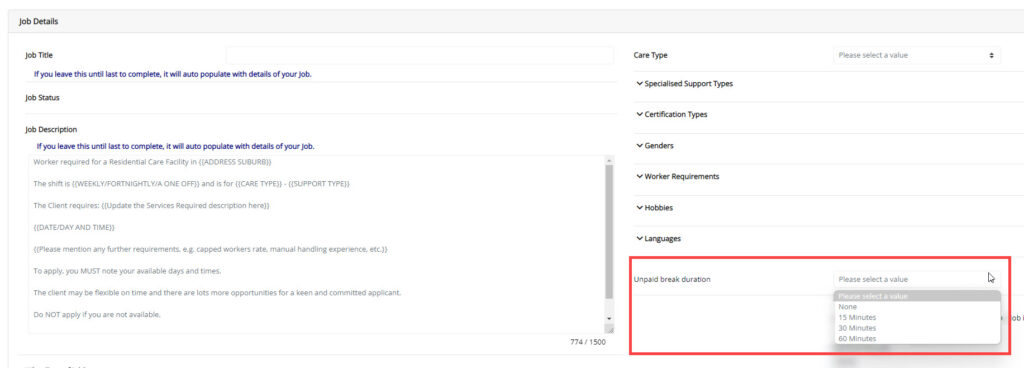
  • To access this feature, a new field is now available on the Activity, Shift and Job creation screens, titled: ‘Unpaid break duration’


Activity Creation

 
To set an unpaid break on an activity;
  1. Select the Start Date Time,
  2. Select the End Date Time.
  3. The field ‘Unpaid break duration’ will now be visible.

Setting Duration


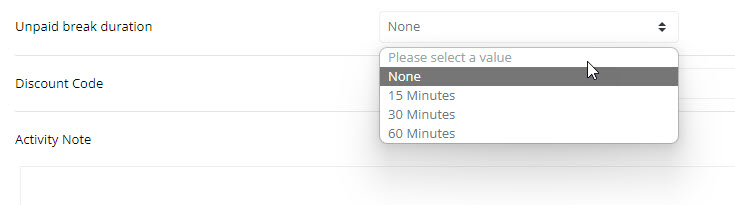
From the dropdown, select the duration of the unpaid break from the following options:

  • None
  • 15 Minutes
  • 30 Minutes
  • 60 Minutes

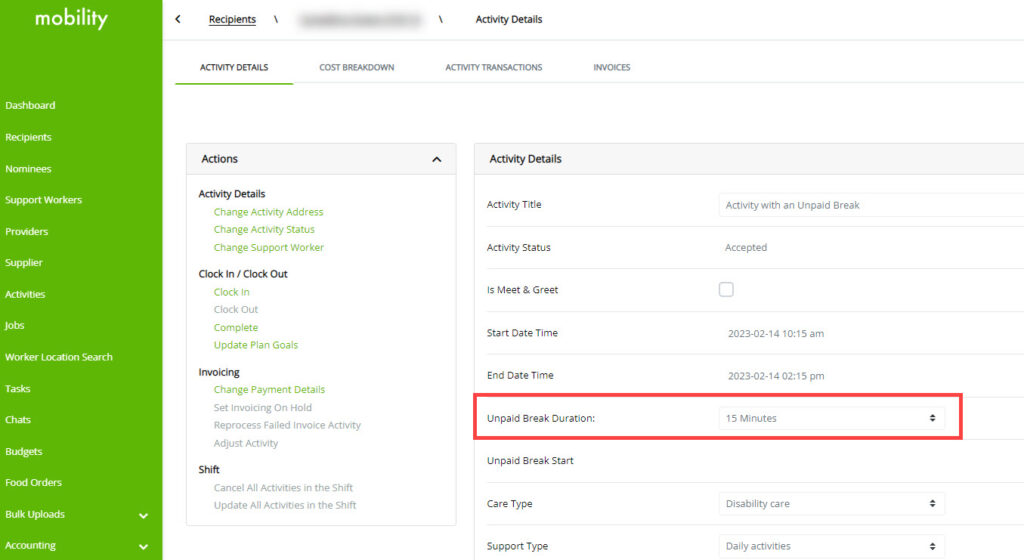
Editing the Duration


The break duration may be edited from the Activity Details screen, however, this field can only be updated while the Activity is in the status of:

  • Pending
  • Accepted
  • In-Progress

Completing the Activity


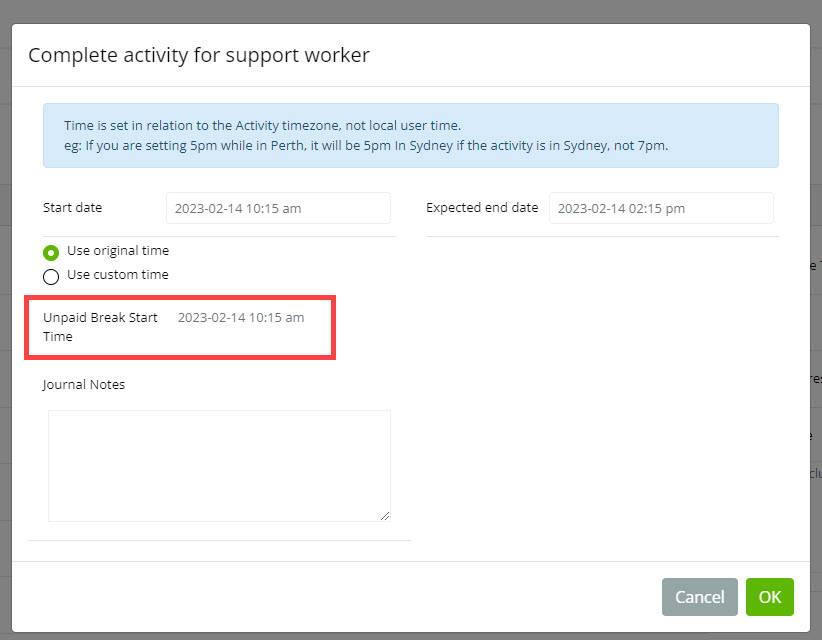
When completing an activity with an unpaid break included, you must select the Start Time of the break, on behalf of the Worker.

Shift Creation


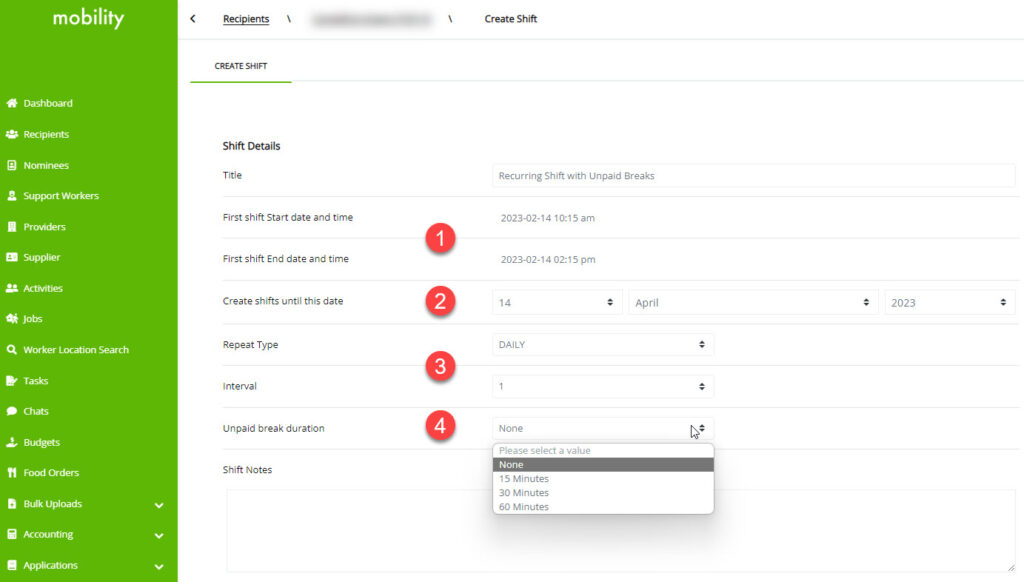
To set an unpaid break on a Shift series:

  1. First, select the start and end time of the first activity to be created
  2. Select the date of the last activity in the series.
  3. Then set the Repeating Type and Interval.
  4. The Unpaid Break duration will now be visible and will apply the selected duration to each activity within the series.

Job Creation


When creating a Job, the option to add an unpaid break is displayed by default.

Any activity or shift created from this job, will automatically apply the unpaid break duration to that booking.